Acer and Samsung Chrome Netbooks Announced


I saw the news this morning on Twitter from Editor for PC Magazine Lance Ulanoff:

Google: ACER introing netbook-sized ChromeBook #$349. Samsung’s ChromeBook: $429 for Wi-Fi Avail June 15. #io2011

I was way off on the price.  I figured that since the Google Chrome OS is a browser-based only computer that they would sell a Google Chrome OS Netbook for $150-$200.  I never thought they would sell as high as they are.

Chrome OS Site also reports the specs for the Samsung netbook along with other pictures of the netbook from different angles.  The Samsung Chrome OS netbook will sell in WiFi only for $429 and 3G for $499.

I have been using my CR-48 Google Chrome OS netbook since mid December when they first started shipping and I love it.  I still use my desktop computer but only for things that I can’t use my CR-48 for like photo editing with Gimp, balancing my checkbook via Microsoft Money and playing Lord of the Rings Online.  My CR-48 has basically become my default computer for everything else, as it was supposed to be for the pilot program.

I cannot say that I agree with those prices because you can get a netbook for the same price with Windows installed and be able to install software that you want on it to do everything my desktop computer can do.  The Google Chrome OS is internet only.  You can get the internet on a Windows netbook so why pay that much money?

It’s a great operating system, I just don’t think it’s that great that you would pay $500 for it.  I think that they will go down in price eventually so I would wait until they are a more reasonable price.

New Blog Banner

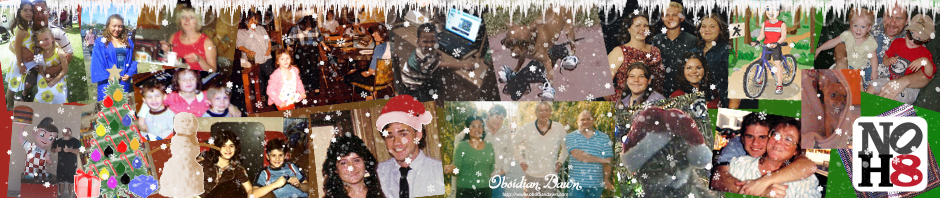
I am not a graphics designer but I do try to make all of my own graphics because I really can’t afford to pay a graphics designer to do it for me. I usually like to have a whole new banner image for the holidays and I think I’ve finally gotten my banner the way I want it.

I’m using GIMP as my Photoshop program and I’m using brushes for all of my other graphics like the Christmas decorations and snow from Obsidian Dawn.

I’m not very good at it yet but I think it’s fun working with brushes. The only issue I had with these particular brushes is that when you click the brush pattern onto the image, it’s very light. You can’t even see it unless you click it several times and even then it loses all of the details and texture in the image. What I have figured out is that if I make it white then click it on the image about 10 times, it gives me a base, that way I can use a color and click it down again and you can see it better.

Take the Snowman for example. I created a layer for the snowman then I used white and I created my base then I erased the arms.  I created another layer but moved that layer down under the white layer and I used a dark brown color then stamped the snowman back down about 10 times. That way you can see the arms but not the dark brown snowman because that was all hidden behind my white base. Then to give it texture I just stamped it down (still with the brown) on top of itself on the base layer. The only issue is that in the Obsidian Dawn website when they show the snowman in the image for all the brushes, he has a red scarf. I really don’t care about his scarf but it would be nice to be able to just stamp it once and have all the details like the red scarf.

I did the same thing with the Christmas tree (although it may be a little bit overkill), all the decorations, the presents and the Santa hat on my head in the picture of me when I was 16. Then I added the snowflakes and then the snow but I didn’t click many times, I only clicked once for the snowflakes and the snow because I didn’t want it to overpower the image.

You can go to the Obsidian Dawn website and download some brushes for your own graphics. They have tutorials for using these brushes in Photoshop and Gimp but they are mostly for Photoshop which is why I’m still clueless. Maybe they work better in Photoshop than they do in Gimp so you don’t have to go that extra mile that I have to go. Who knows. Actually tell me if you know so I can beat my head against the wall if I’m doing it the hard way lol.

I hope that some day I might get better at using GIMP because I really love creating my own graphics. Maybe some day I might be so good that I can start making desktop themes to add to my downloads page. Probably not so don’t hold your breath on that one.

My Computer is Back to Normal

I have finally finished installing all the useful programs back on my computer. I decided against some programs that were too slow and not very helpful and downloaded some free programs that seem to be more help than the others.

I am not going to use Adobe Photoshop Elements v1 anymore which I got it for free with my camera many years ago. I found a new program that has way more features called Gimp. Gimp is free and it has so many cool things in it so I’ll be using that from now on. I went to the Adobe website to find out what the new version of PhotoShop is and it’s CS5 and it’s $600 so um… no thanks. $600 is a lot of money to be able to fix the red eye in my pictures lol.

I’m going to be using Google Picasa to download the pictures off of my SD card via my printer where I can straighten the picture, fix the lighting etc but I will use Gimp for other daunting tasks like creating banners for my blog or whatever it is I feel the need to do that doesn’t cost $600 lol.

Before I reformatted my computer, I discovered a bunch of new free programs like Gimp that I could download to replace all my old software. But there were some programs that I didn’t have and now I do.

There are a couple of video programs that I am finding useful now such as WinFX Video Converter which does what it’s name suggests. You can convert videos to different formats like for your PSP, cell phone or mp3 player. That helps for me because I like to put my edited home videos on my PSP because sometimes when I play them for people on their DVD player, the DVD doesn’t play right and they can’t see it. They can see it on my PSP if the DVD doesn’t work.

When I turn my edited home videos into DVD files in the past, I had to use a program that added watermarks to my videos because I couldn’t afford to pay the $50 for the software but then I found Free DVD Creator. I haven’t used it yet so I’m not completely sure it’s what I want but it makes menu’s and turns my videos to DVD files for free and that’s all I can afford. Since I haven’t used it yet, my worst fear is that it will put my videos out of sync but I will have to do a test soon to see how it works out. I hope it doesn’t disappoint.

I’ve been using Wordpad for years to type letters, not that I type many letters but it’s the only word processor that comes with Windows for free. But, I found Open Office has a bunch more options than Wordpad and it’s free. I’ve actually known about it for quite some time but I never really tried it until now. I love it! I will definitely be using this from now on. Especially for my book. I’ve written a few chapters so far and now that I have Open Office, I can finally write them with a good spell check since I downloaded the add on called “After the Deadline” which is actually a plugin I use here on my blog.

Look, I’m not a cheap skate who refuses to spend money on software, I just can’t afford the high prices that these companies charge. Like take Adobe for example. They keep coming out with upgrades for their software that costs $600. Who can afford to keep buying the upgrades at $150 a pop every time they have a new version? Not me! Even a $50 program is out of my price range. If I have $50 it’s going towards groceries, you can bet on that.

Anyway, I didn’t install everything that I used to have because it’s too much on my computer and it was making everything so slow. Why have all this useless software on my computer that I never even use? So… it’s gone. Finally. Now I can go on with my life with a faster computer again.