

Update: I’ve actually discovered new information. You see the image above? You see the double cloud icon on the left in the task tray next to the network icon? You want to right click on that and go into settings, then click the settings tab and click Start when Windows starts, otherwise you will have to go through this every day…
I have a Logitech MK520 keyboard mouse combo. It has a Print Screen button located above the arrow buttons just below the volume buttons. You press that button and it brings up a window (above) saying a screenshot was saved to your OneDrive. In the past when you took a screenshot, it went into your clipboard and you had to hurry and go into your paint program to paste it so you could save it, and with Windows 10 you can now enjoy all your screenshots all the time with no extra effort.
The last few days has been hell for me because I haven’t been able to take a screenshot. I Googled for the answer and I couldn’t find one. I just figured it out, and here is the answer.
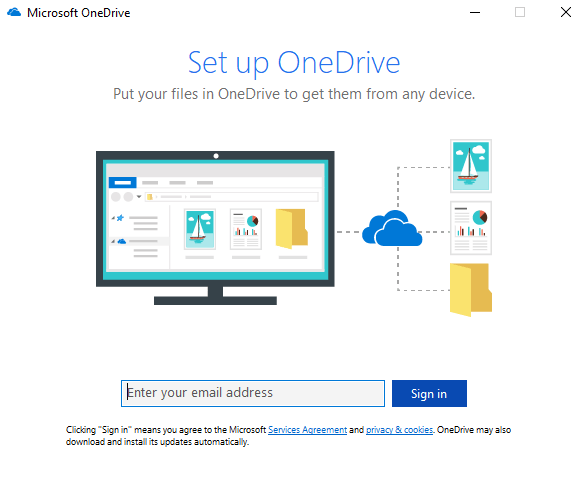
So, when you press that Print Screen button it saves your screenshots to OneDrive, right? If your OneDrive suddenly isn’t letting you see pictures you haven’t already downloaded, then it’s because you probably aren’t signed in to your OneDrive anymore. I went to the Microsoft OneDrive website and clicked Download, then the next page let me know that I was already running OneDrive so I clicked Start OneDrive and another page opened and I got a pop up window saying Open Microsoft OneDrive, so I clicked it and got this image. Basically, just type your email address and it signs you in. I’m sure there is an easier way, and I’m sure you will find it. Just basically sign in to your OneDrive and press your Print Screen button and see the glorious screenshots being saved once again.
I hope this helps someone.
Update: Ok so I seem to have new information. I discovered that OneDrive has given me this issue daily. Every day when I turn my computer on I have to go through this and I have discovered that at some point it

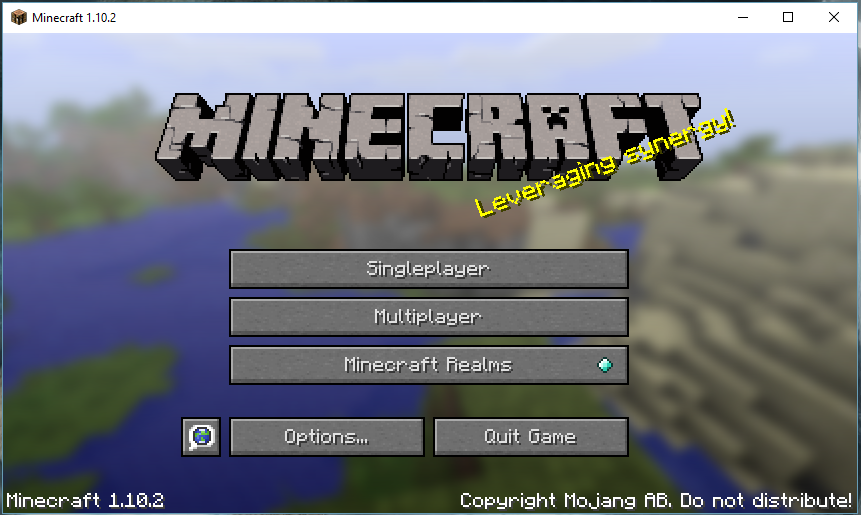
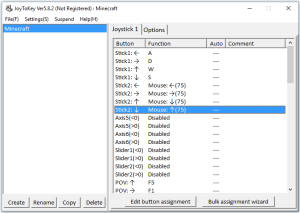 I went to Google and asked how I can play Minecraft PC with a Xbox One controller and the first couple things that came up were videos. One said to install the Xbox One drivers, which I don’t need to do since my computer recognizes the controller immediately. I have yet to feel a rumble, so perhaps I will need to install that anyway. Next they said to downloaded JoyToKey and the guy had all the commands in the description for his video. It didn’t have every key correct though, so I was able to find the keyboard/mouse command so I could fix that problem. Now the Xbox controller works perfectly, except for the inventory. I can go into the inventory, I just have to use the mouse to craft with, but that’s fine. My only concern was that I was able to use the game controller to play the game.


 Xanapus` Lair