Google Queues

I don’t know if I am just very late to the game but thanks to reading the PC Mag on my new Nook, I am a little bit more educated than I was before I got it.

I read an article in the PC Mag about a new (or is it new?) thing from Google called Gpanion which is very handy. It’ basically has these app icons (like apple iPhone apps) that open a website for certain google websites. Like your email, calendar, youtube, maps… etc.

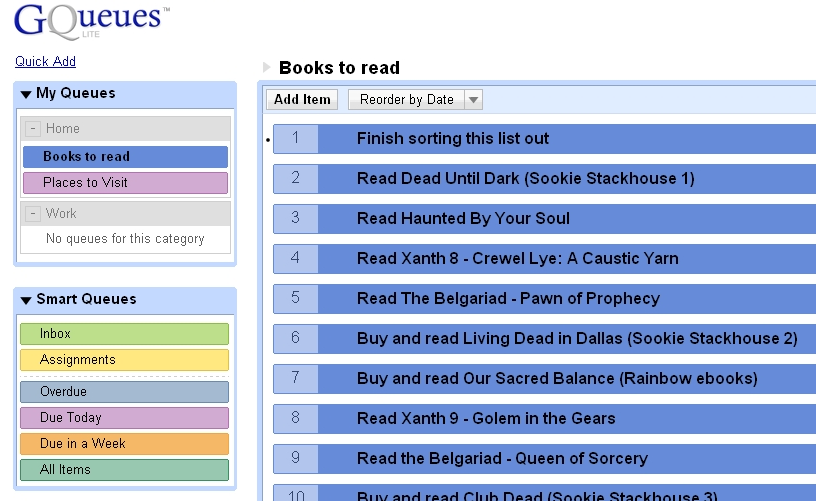
One of those things in there is called GQueue. What that is, is if you have a ton of things that you need to get done you type them out with a date that it needs to be completed by and as you get that item done you check it and that item disappears forever. Be careful you don’t prematurely uncheckulate it because it is a disappointment when you have to reenter the monster back in.

I am not ashamed to show mine here. It’s not showing up in my screen so I’ll see what happens when I publish this post. But it should show you a list of the books I have in my queue. I have not bought all of them whether I said so or not but that list is only 1/4 filled. I decided I would finish it later since I have to get to bed.

Which reminds me, tootles. Goodnight. See ya’ll in the morn when I try to finish it.

Shopping for an eBook Reader

Someone I follow on tweeted this link today. Engadget’s back to school guide: E-readers. Naturally I had to look because I too want to buy an e-book reader. I have wanted one ever since they first came out but never could afford one because they were in the $400 – $600 range (around 2006).

In November 2009 I started blogging for pay (via PayPerPost and Blogsvertise) with the intention of saving money for buying an e-book reader, Kindle or Nook. Preferably a Nook because of the color screen at the bottom but it didn’t really make any difference. They were both around $265 or so back then.

I had a lot of trouble saving the money for one because my monthly income is so low that when I run out of grocery money I ended up taking the blogging money from PayPal to buy food. Since I have a PayPal debit card it makes it so much easier to spend the money.

9 months has gone by since I made the commitment to save the money and I still don’t have an e-book reader. However, the thing that I wanted the most out of an e-book reader was a lower price to justify my purchase.

eBook readers such as the Amazon Kindle, Barnes and Noble Nook and Sony Reader have all gone dramatically down in price, down to a price that I can finally afford.

Unfortunately, they still don’t fit my needs. What I want is an e-book reader that will accept a lot of formats like .lit, .prc, .pdf, .mobi and .epub. What I want is for an e-book reader that would allow me to read those formats and still be able to use their dictionary. I don’t know if they all let you to use the dictionary with just a .pdf file which is what makes my decision so difficult.

Kindle Wireless Reading Device, Wi-Fi, 6″ Display, Graphite – Latest Generation:

Pros: The new Amazon Kindle is stylish. I love the graphite color. I like the keypad on the bottom, it’s small enough that I’m ok with it considering I would probably be typing on it occasionally when searching for keywords, making notes and searching for books in the Kindle store. They have games on it, which I don’t really care about, I just want it to read but it is good to know. The price dropped down to $139 and has free 2-day free shipping which is awesome. The battery works for a full month without charging with the wi-fi turned off which is great.

Cons: It does allow me to view my .pdf books but that’s it and I can’t use the dictionary for definitions which is a big negative for me. I mean sure I can’t do that with a paper book but this is electronic and I want that ability. Also, it does not have an SD card for adding more books.

NOOK Wi-Fi, eReader, eBook Reader – Barnes & Noble:

Pros: The B&N Nook is also very stylish with its cool color touchscreen at the bottom which also has a keyboard. The screen goes black while you are reading to keep you from being distracted. It does allow me to add a .pdf, .epub and .pdb file and has a MicroSD slot. The cool thing about the Nook is that you can lend books to your friends and if I had any that had a Nook then we could lend each other books. If you are in the B&N store you can browse through a book for free for 1 hour per day. The price dropped down to $149 and although it’s $10 more than Amazon it is still a good price.

Cons: The Nooks battery is only 10 days unlike the Kindle which is 30 days. The color touchscreen on the bottom is too slow for impatient people like me. Although as I said it allows .pdf, .epub and .pdb files it doesn’t allow the others. All my ebooks are in all the other formats I mentioned above.

Sony Digital Reader Pocket Edition – Dark Blue:

The price of this is different at the Sony site as opposed to the Amazon site. Amazon charges $136.99 with free shipping but according to the Sony site it’s $149.99. I would buy it from Amazon.

Pros: Although it is a little bit stylish in the dark blue color, it isn’t as stylish as the Kindle or Nook. The Sony Pocket Edition does allow multiple formats such as .pdf, .epub, MS Word, BBeB Book (?) and other text file formats. It doesn’t say the others. The ebook store Sony uses is the Reader store which I assume is from Sony, check out books from public libraries and access over one million free public domain titles from Google Books, sharing sites and other online stores and publishers websites.

I don’t know if that means I can access the Rainbow eBooks website or not, I hope it does because that is what I want.

Cons: One of the things I don’t like about this is that it doesn’t have a keyboard for typing and I don’t know how you type anything when looking up a book to buy.

I don’t know if this should go in pro or con, it’s charge only lasts 2 weeks but I mean seriously, I can charge it every 2 weeks.

This is a tough and huge decision, one that I can think about until the first week of September when I will finally have the money saved up to buy one. I’m leaning more toward the Sony reader though but I would like it if people would leave a comment telling me what they think of each of these readers to give me more to think about. Keeping in mind that I buy a lot of books from Rainbow eBooks and ebooks.com.

Strange Activity With My Blog

You might have noticed there were 3 new posts with the title “Mel Gibson’s Father, As Crazy As Mel” today. That was unintentional. I was using the Amplify website to copy images and text as quotes for a post about the Prop 8 update (watch for in a few minutes) but it would automatically take my first Amplify post (About Mel) along with the Prop 8 info from Towlroad.com and post it without my permission.

The problem is a Google Chrome plugin that I have been using for a long time called Last Pass which allows my browser to automatically log in to websites with my stored passwords. For some odd reason it thought the subject line was a password and it automatically submitted my post thinking it was signing into a website.

That has never happened before and in order for me to actually continue with this blog post I had to disable that plugin.

I will try to keep that in mind next time I use Amplify to write posts.

Taste the @Twimbow

A few days ago I was searching for something that had to do with rainbows, I think I was looking for an image. I really don’t remember but in my Google search I found Twimbow. It said it was in pre-Alpha so in order for me to use Twinbow I had to sign up and wait for approval. Well, I got an email today with my approval.

When I found it on Google I read that it was a new Twitter application so I thought what the heck, I could always use a new way to go on twitter. I’m not really much of a twit er wait no that came out wrong… or did it? I don’t get into twittering as much as a lot of people do so I don’t really use it. The problem with Twitter is that I am following so many people and I look away for 5 seconds and there are 20 more tweets. I look away for 5 minutes and there are 500 new tweets. It’s overwhelming so I don’t use Twitter as much as I would like to.

Twimbow is a bit different in the respect that you can choose what tweets you want to look at. Look at this image, this is the main page. The left column has direct messages, your mentions and people mentioning you, all color coded. The middle column are everyone’s tweets that you are following and the right column are the Twimbow mentions.

What I would love to see happen next is being able to either block certain people’s tweets or only show certain people’s tweets. That way you can block out all the spam tweets from people you really don’t know who you follow that advertise a lot.

The problem is, I follow everyone who follows me whether I know them or not. So because of that my twitter page is overwhelmed with tons of new tweets. I don’t want to unfollow those people but I don’t want to read their spam tweets either lol. And some of the people I follow are speaking in Russian. I can’t even read their tweets.

I said earlier that you can choose what tweets you see, this is what I mean. In the image above you might have noticed at the bottom it said Monitor. Well, if you click that you can type in some key words or phrases and anyone who tweets those words or phrases will show up under that word.

For this example I typed in 4 words, Nook, Kindle, Ebook and Gay. So every time someone says those words I will know it. You can also move those boxes around. When I typed them all out they were all vertical on the left side, I moved them so they are horizontal to see the tweets in them.

You could also type in certain people’s names like if I only want to look at Kathy Griffins tweets or any time someone said her name then those will be the only tweets I see. I typed Xanapus and my last tweet came up but because nobody ever says my name 😦 that won’t have any new tweets.

I would like to only follow certain people’s tweets like I said Kathy Griffin but also Alyssa Milano, Bethany, BravoAndy, hello Ross and a few other celebrities. I only want to look at friend tweets and celebrity tweets.

I like Twimbow because their site looks way cooler than Twitters does. Hopefully they will have ways of blocking or only allowing certain people so I can enjoy it even more.

PSP eBook – NIMS PSP eBook Reader

I’ve finally figured out how to turn my PSP into an eBook reader.  I’ve googled the term “PSPebook reader” before with bad results.  You know, those homebrew programs.  Yeah, that’s a bad result.  I refuse to brick up my PSP just so I can see if I can read an e-book on it.

In my google search I did find a message board where they talked about a PSP e-book reader so I checked out a couple of ideas, this is one of them.

NIMS PSP Ebook Reader .  This is a little different although not quite better.  If you google the title you may find that it is found in homebrew websites.  However, it does not need a homebrewed PSP to work.  It does work with a regular PSP because all you are doing is loading an html file in your web browser as your reader then putting your e-book files in another folder.

It has a dos program that you run where it will convert PDF files.  I tried it and the output was terrible.  It wasn’t what I had hoped it would have been.  It’s supposed to convert your pdf e-book file into html files along with some other files I don’t know.  Anyway, it wasn’t good.

I did take their index file though and made my own little version of an e-book reader.  I changed the text and gave it a background so it looks snazzy but it works better.

Ok here is what you do.  File: PSP_ebook.zip This is safe, scan the file with your virus software, all it is, is a zip file with 2 files in it.  1) index.html file and 2) the background image.  You unzip the files and put them in your PSP in the folder – PSP/books.  You have to create that books folder.  I did that to make it easier to find the file in your browser so you don’t have to type too much to find it.

When you buy ebooks you might be able to buy them in pdf format, if you can here is a sweet utility that will convert them to html.  If the e-book store offers an html version then all the better for you because you won’t have to worry about converting anything.

When you have your html files of your ebooks you put them in your PSP in the folder – PSP/COMMON/books.  You will have to create that books folder.  When you open an e-book file you cannot choose to find them in the same location as the index file, they have to be in a higher folder like Common.

Now here is what you do.  Go into the browser of your PSP, type this in the address bar:

file:/PSP/books/index.html

Now bookmark that so you don’t have to type it in every time.  Now just click Browse, scroll down to /PSP/COMMON/books and click that then find the name of the book you uploaded into the PSP and click it and viola, your PSP is now an e-book reader.

There is a downside, you won’t be able to bookmark at all.  Fortunately when you leave the browser, once you go back into it you will be right back where you left off.  That is if you didn’t load an actual website which would close the point you stopped reading.  If you did that then you would have to scroll down to where you left off at.

If your PDF had chapters with links then you can use those links to find the chapter you were on.

I give the NIMS program a 1 out of 5 for the fact that the e-book I chose to convert looked terrible as an e-book in my PSP.  I give my conversion of their program a 4 out of 5 because it has no bookmarking ability but it works better than their idea.

PSP eBook Creator

I’ve finally figured out how to turn my PSP into an eBook reader. I’ve googled the term “PSP e-book reader” before with bad results. You know, those homebrew programs. Yeah, that’s a bad result. I refuse to brick up my PSP just so I can see if I can read an ebook on it.

In my google search I did find a message board where they talked about a PSP e-book reader so I checked out a couple of ideas, this is one of them.

“ PSP eBook Creator ” which is actually not a bad program. What you do is click File then open a “.txt” file, you can change it from portrait to landscape, change the background color or give it an image, change the text color, change the font, font size and make it bold or regular then create an output folder then build your e-book files. Once all the images are made all you need to do is upload the folder to your PSP Picture folder, turn it on and start reading.

What it does though is it creates an image for every page of the e-book . If this is a long e-book, this process will take a long time and the size of the entire book might be huge especially if you are running low on space. Not to mention that you won’t have a book cover image to look at since all the files were taken from a text file.

Since it only uses text files you will have to figure out a way to convert your e-book to text format with Calibre.

Here is a sample of what one of the pages will look like in text format as a .jpg file.

It’s not a bad image to look at although you will see some boxes here and there (as seen before Cover Photo Credit…). I read this book from beginning to end last night on my PSP just to see if it would hurt my eyes at all and even though it’s not that long of a book my eyes were ok for a while. But if it were a 400 page novel I’m sure that reading on a PSP would start to hurt your eyes after an hour unlike e-Ink.

If I were to make some changes to make it easier on the eyes I would probably put in a dark background image, make the text white, bold and bigger. For this test I made the font Comic Sans regular size 12. Default is regular (non bold), size 10 but I don’t know what the default font is.

You don’t have to worry about a bookmark since all you have to do is leave the image part of the PSP. Once you go back into it you will be right back on the last page (or image) you were on. That is unless you turned the PSP all the way off, then you would have to find where you were again.

If I were to give this a rating I would give it a 3 out of 5.

GPS Gives You 4 Days of Your Life Back

Study: GPS gives you four days of your life back – Source Dvice.com

This is a very interesting article about how a GPS can give you back 4 days of your life per year.  How can they make such a claim?  Because when you use a GPS to get around it can help you to avoid getting lost as well as avoiding traffic jams.  So basically you get to your destination faster, you use less gas, you waste less time and spew less carbon dioxide into the air.

I personally think that this is a true claim.  Just yesterday I printed directions from google maps to drive to a customers house to deliver some packages for Darrin, he works at a lighting store and he had to make 2 deliveries.  I went with him so we took his SUV instead of his work van because he really can’t have anyone in the van with him.  So anyway, I was telling him where to go according to the printout and we almost got lost because of the street names.  There is Stine and New Stine, we were supposed to turn left on New Stine and stay on Stine when it changes but I had him turn on Stine instead lol.  It’s very confusing.  We got all the way to the dead end and were like where the heck are we?

We ended up getting there but we could’ve gotten there sooner if Darrin had a GPS instead.

Having a GPS not only saves time, gas and the environment but it also saves money on paper and printer ink.

Amazon Wireless

amazonwirelessAmazon has added a new service to their website called Amazon Wireless.  This is kind of neat because you can choose your wireless company, which by the way they only have 2 so far which are AT&T and Verizon Wireless, then choose a phone then choose whether you want a new individual account or if you are already part of an existing individual account or family account.

Most of the phones are only a penny and so you basically get a free phone but when you click that you already have an existing account the price may go up to about $50-$75 or more depending on the phone.  I found that certain phones you still get for just a penny with an already existing plan.

I think that’s great that they will give you a free phone if you are upgrading your cell phone but not your plan because it just makes it easier to get a new phone.  I’m sure people don’t want to upgrade because they just can’t afford to so this makes it easier.

I didn’t see any iPhones listed but I did see Blackberry Curve and Blackberry Bold.  They also have some other well known companies like Samsung, LG, Motorola and Sony to name a few.

Now here is my question and I hope someone will find this via google blog search so they can answer.  I have a pre-paid cell phone with T-Mobile.  Of course they don’t offer T-Mobile yet but it says coming soon.  But when they do get T-Mobile I wonder if I can buy a new phone for my pre-paid plan with GPS and Mp3 capability.  I wonder if it would work.  I don’t need internet, I just want to be able to have the GPS and Mp3 along with being able to call people.

I currently have a Nokia 3390 cell phone pre-paid plan with T-Mobile that I’ve had since 2002.  The reason I got a pre-paid plan is for 2 reasons.  #1 being that a friend of ours in Hollywood was always driving to Malibu to visit her mom (this was 1997-1999, she passed away in 2000) and she couldn’t get reception and she was having nothing but problems but to be fair she knows that she didn’t have reception due to the mountains that she was driving through but she blamed it on the cell phone company anyway.  She insisted on getting out of her contract to go with another company and she had to pay big bucks to get out of it which was dumb because she had the same issue with another company lol.  So it’s for this very reason that Darrin forbade me, yes, I said forbade, from getting a contract.

Reason number 2 is that I have a little to no credit score since I never really established credit in my late teens.  No credit cards means bad credit score which means the cell phone companies will only give me a cell phone with the highest paid plan which makes absolutely no sense to me.  They should offer me their cheapest plan so they know they get their money every month.  Also, I’m on disability so I can’t really afford a monthly plan fee.  All I really can afford is the pre-paid because I only pay for minutes when I need them and I don’t use it that much to warrant buying a lot of minutes.

Darrin has taken over the phone though because he needs a phone at work so when he’s driving if he needs to make a call to AAA for a tow or whatever then he has a phone.  Also if he has to call 911 then he has a phone.  He usually uses it to call me at the house on his way home.  But he’s always asking me to go to map quest and tell him the directions that he writes down and I think it would be much easier if he had a GPS on the phone.

Sorry I rambled on but you have to know the full story of why I’m asking lol.  Thanks for your response in advance.

Microsoft and Yahoo Vs. Google

I saw on Fox News this morning that Microsoft and Yahoo are going to merge and Yahoo will start using Microsoft’s Bing search engine.  I don’t know why.  Anyway, they said that Google has been kicking Yahoo’s ass in the search engine department so MS and Yahoo are going to combine to kick Google’s ass.

Shep on Fox said that Bing seems to be a way better search engine but I don’t know about that.  I just did a Bing search for my name “Xanapus” and it didn’t seem that special to me.  It has a pop up on the right side of each item that shows you whats in there but who really cares about that?  It’s not a little mini image of the page, its text.  I don’t see how it’s better than Google personally.

Also, a few nights ago we went to visit friends of ours and when I went to look up the directions I opened Windows Live Mail (which I find easier than Outlook Express) and opened up the address book to copy the address to paste in Google maps but the address was a link so I clicked it and up came Bing Map.  After awhile trying to figure out just how I was supposed to get directions to that address I finally printed the directions with a map.  Well, those directions got us lost because they put us somewhere else.  They told us to turn left when we were supposed to go to another street 2 streets up on the right.  We ended up having to call to find out which street to go to and found out right and not left.

Google in my opinion is way better for search engines and for maps.  I’m probably not going to change.  There are some aspects of Google I don’t care for like Google Chrome browser because it doesn’t give me my Yahoo toolbar.  I’m kinda sorta looking forward to Google Chrome OS only because of the claim that it starts up faster than Windows but we will see if I can still use my Windows software since it will be Linux-based.  One service of Google’s that I do love is their free 1-800-GOOG-411.

Good luck Microsoft and Yahoo.

Google Chrome OS?!?!

This is coming straight from the Google blog…

Official Google Blog: Introducing the Google Chrome OS

Wow.  That’s so cool.  This is going to be neat to be able to turn your computer on and once it gets past all those tests that you see, you know, where it shows how much memory you have, then all of a sudden you’ve got desktop.  No more waiting for the Windows screen that shows that animated bar at the bottom of the screen.  Instead you are instantly taken right to your desktop so you can immediately start browsing the web.

The only thing that concerns me is if this will allow me to install my Windows programs like the Sims, EverQuest, Adobe Photoshop Elements, Adobe Premiere Elements, Autodesk 3DS Max 2008, my webcam software, my mp3 player software etc.  And will it allow my hardware like my webcam and my Kodak printer?

One of the things that I really look forward to is if this will allow me to play my old Win 98 games that Win XP won’t let me run.  I just hope that this isn’t something like Mac and Linux where you have to buy the Google OS software only which will probably only be a few programs at first and will always only have 10% of the software compared to the 100% that Windows offers.  That’s always been an issue and why I won’t ever have a Mac or Linux again because I want to be able to buy whatever program I want.  It’s really depressing when you go to buy software and the aisle for that OS is just a shelf while the rest of the store is for Windows.

Of course I’ll have to wait until the 2nd half of 2010 for this to become available so I look forward to all of the blogs and pictures and possibly videos showing how well it is on Netbooks.

Edit 2011-02-15: I have been using Google Chrome OS CR-48 since mid December and it does not allow me to install anything and it does in fact have apps that you can install from the Google Chrome store.  They apps install a link to your desktop which are basically just a link to a website.  There are also tons of extensions that you can use and it does work with my printer through the cloud.  No I can’t play those games I listed above but there are other games I can play that are web-based.

I would not want this to be my desktop, it works great as a netbook only in my opinion.  You would still need your regular desktop for your other programs and MMO games.